Building on the ideas from the Arduino MIDI Note Monitor this project uses an LED matrix, which is an 8×8 grid of LEDs. You can get these as shields for the Arduino, as individual units, as “backpacks” (i.e. modules to plug-in and use) and a whole variety of forms. Each will have a corresponding library to allow you to use it without having to understand all the detail.
- In LOLShield MIDI Waterfall Display I create a similar display using an Arduino Uno and a LOLShield.
- In Adafruit Feather MIDI, Music and LEDs I use an Adafruit Feather board and LED “wing” for another display.
Warning! I strongly recommend using an old or second hand keyboard for your MIDI experiments. I am not responsible for any damage to expensive instruments!
I wanted a miniature module for this one, so I’m using a Wemos LED Matrix Shield, which you can see below (mounted on a D1 mini on the left, and on its own on the right):

These are the key Arduino tutorials for the main concepts used in this project:
If you are new to Arduino, see the Getting Started pages.
Parts list
- Wemos D1 Mini (you can use an Arduino if you prefer)
- Wemos LED Matrix Shield (you can find an equivalent LED matrix for use with an Arduino if you prefer)
- MIDI input circuit (see Arduino MIDI Interfaces)
- Breadboard and jumper wires
The Circuit
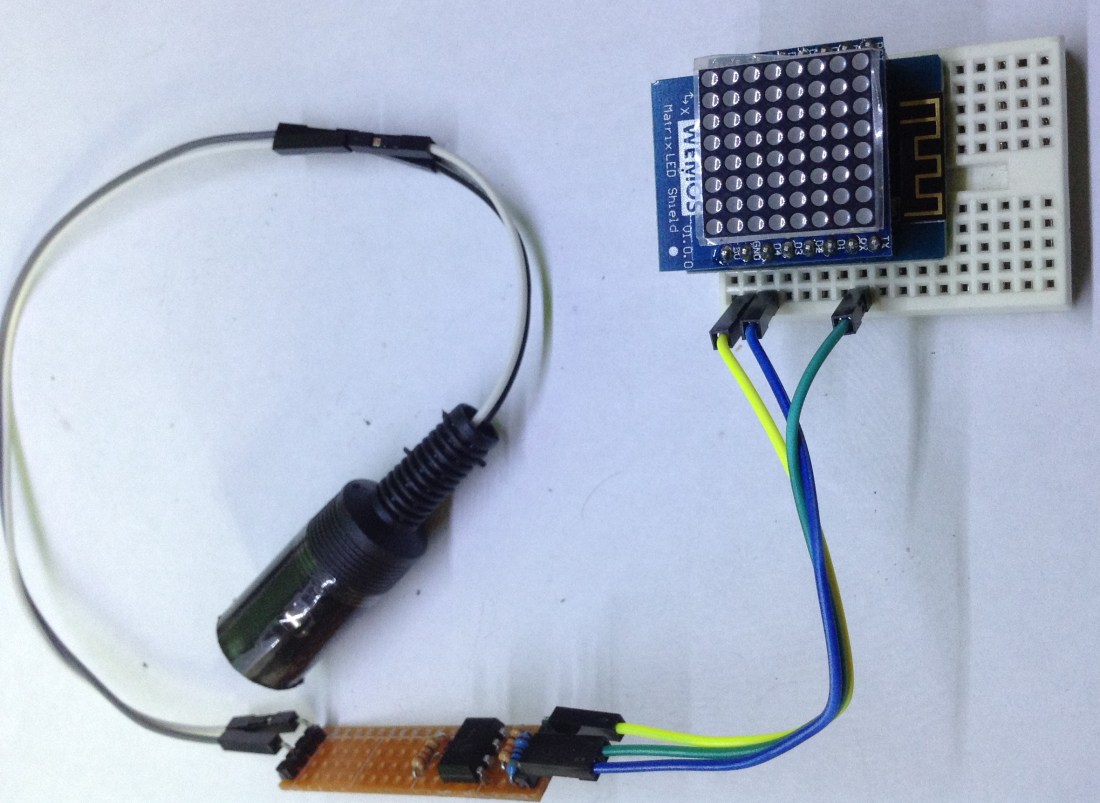
The Matrix shield plugs directly into a Wemos D1 Mini, so all that is required is to connect up the MIDI in circuitry. For my MIDI receive module it just requires +5V, GND and the signal, which is connected to the Wemos RX pin. These are conveniently all on the same side of the D1 module, as shown below.
The Code
The LED matrix is an 8×8 grid which is controlled using an independent chip, which you can see on the back of the LED shield. To control it, you only need two connections – a clock and data signal – in addition to the power lines. But you don’t need to worry about all that, as it is hidden away inside a library, which you can find here:
Unfortunately this doesn’t seem to be easily found within the Arduino environment, so what you have to do is:
- Select “clone or download” and save the resulting ZIP file somewhere useful.
- From within the Arduino environment, go to Sketch -> Include Libraries and near the top of the list there is an option to “add.ZIP library”. Choose that and find the ZIP file you downloaded.
And that should be it.
So in order to map MIDI notes onto the 8×8 grid, I simply use one line of the grid for every 8 notes from the lowest recognised note to the one 64 notes higher.
There are some functions required to setup the LED matrix, but once that is done to turn on one of the LEDs you just call the matrix.dot (x, y) function with the horizontal and vertical positions of the LED you want to turn on. To turn it off, use matrix.doc (x, y, 0).
I use these within the noteOn and noteOff functions. To turn the MIDI note into an x, y coordinate, I use the note/8 as the y coordinate (to select the line) and the remainder as the x coordinate (to choose the position on the line). The simplest way to do this, as we have 8 options, is to take advantage of bit arithmetic:
- Divide by 8 is the same as bit shift right three times, so value = pitch >> 3
- Getting the remainder is the same as just picking out the bottom three bits, so value = pitch & 0x07
Using the “dot” function doesn’t directly update the display – the idea is that you can build up the picture you want, then update the all the LEDs in the display in one go. This happens with a call to the matrix.display() function, which I simply do alongside the MIDI.read() function every time the code runs the main loop.
Closing Thoughts
This is the just start of visualising MIDI information – there are many options from here. It is possible to get LEDs in rings, strips, individually, as single colours or programmable in full “red, green, blue” modes.
There is a whole range of MIDI information that could seed the display – channel information, controllers, program changes, and so on.
It is also possible to hook up small displays that can show text, so it would be possible to build a MIDI tester that could show you which channels are being used or a list of messages being seen.
Kevin

 Simple DIY Electronic Music Projects