This is another variant of the Arduino Tone Generator but this time instead of generating a tone or note, the Arduino is sending MIDI messages! MIDI is the Musical Instrument Digital Interface and has been the means of having one digital instrument control another since at least the 1980s. There are lots of MIDI tutorials on the Internet, so I won’t go into specifics here (here is the MIDI associations introduction to MIDI), but we just need to know that it is a digital, serial protocol and the Arduino includes a set of serial ports, which makes talking MIDI particularly easy!
- In MIDI Patch Button I show how to use a button to change the patch on a synth.
These are the key Arduino tutorials for the main concepts used in this project:
Warning! I strongly recommend using an old or second hand keyboard for your MIDI experiments. I am not responsible for any damage to expensive instruments!
If you are new to Arduino, see the Getting Started pages.
Parts list
- Arduino Uno
- 2x 220 resistors
- 10k potentiometer
- 5-pin DIN plug or socket
- Breadboard and jumper wires
The Circuit

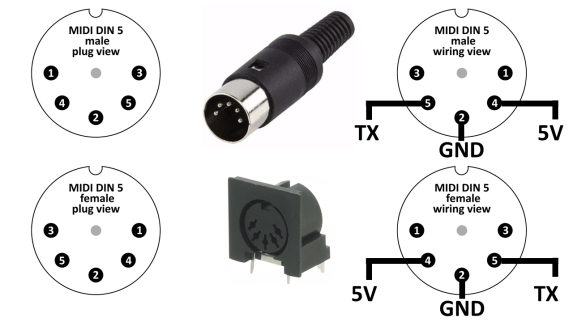
This is the same potentiometer circuit as the Arduino Tone Generator but I’ve added a 5-pin DIN connector, the MIDI standard connector, wired up to the GND, +5V (via a 220Ω resistor) and the Arduino TX pin (pin 1, again via a 220Ω resistor).
Getting the right pin numbers of the MIDI plug or socket can be a bit confusing, (and I’m never entirely sure Fritzing shows it the right way round!), but basically the 5V signal goes to the pin labelled 4 on the plug or socket and the TX signal goes to the pin labelled 5. The ground (GND) connection goes to the pin labelled 2.
This is shown for a plug and socket, from both the “front” and “back” (wiring) sides below.
If you want the gory details, the full MIDI electrical specification is available here, but I’ve tried to give a summary in my MIDI Connections Cheat Sheet.
The Code
It isn’t difficult to write the code to send MIDI data directly – each control message consists of three values to be sent:
- The command and MIDI channel – in this case 0xB0 for a control message (B) on channel 1 (0). The full list of possible commands is here.
- The first piece of data – in this case the number of the controller we want to change – in my case I’ve chosen controller 1 which is the modulation wheel on a synthesizer. There are full lists of controller numbers on the Internet.
- The second piece of data – in this case the actual value to be sent to control the “wheel” – a number between 0 and 127.
But the use of the Arduino MIDI Library hides all the business of configuring serial ports and handling any data formatting and so on.
To use the library, it first needs to be installed. In the Arduino IDE Library Manager a search for MIDI should find it (eventually – there are a lot that come up – you want “MIDI Library by Francois Best, lathoub”).
Another thing to note is that the potentiometer is read using analogRead and returns a value between 0 and 1023. This needs to be turned into a value between 0 and 127 for the MIDI controller, so I use bit-shifting to divide it by 2 three times. I also check if the value has changed so that the controller only sends a MIDI message if there is something different to say.
When it comes to testing, if you don’t have a MIDI keyboard to hand, it is possible to keep the Arduino plugged into your computer and receive the MIDI over the Arduino’s serial ports. This is a little involved, so I’m not going to go into the details here, but the basic idea is as follows:
- Once the MIDI port is set up in the Arduino code, change the serial port speed to something more useful for the PC to receive (for example 115200).
- Use a tool such as the Hairless MIDI to Serial bridge to turn the USB serial port of the Arduino into a MIDI port as far as the PC is concerned.
- Use a tool such as loopMIDI to virtually plug whatever application you want to use to receive the MIDI to the new MIDI serial port.
Closing Thoughts
It is fairly easy to add additional potentiometers and set them up to act as controllers for other MIDI parameters. Alternatively the Arduino could support buttons to provide an “up” and “down” feature, perhaps alongside the use of a rotary encoder as a “parameter” knob.
If your MIDI configuration uses MIDI over USB then there are variants of the Arduino that support the USB interface from code (e.g. the Arduino Leonardo) and there is a version of the MIDI library that supports MIDI over USB.
Kevin

 Simple DIY Electronic Music Projects